
Image to Minecraft Blocks
See what your photo looks like built from blocks. This image to Minecraft blocks tool matches every part of a picture to real block colours, shows the result in 3D and tells you exactly which blocks to use, ready to build or download as a schematic.
Drop a picture here
PNG, JPG, WebP or GIF up to 20 MB
Processed in your browser, never uploaded.
Blocks to use

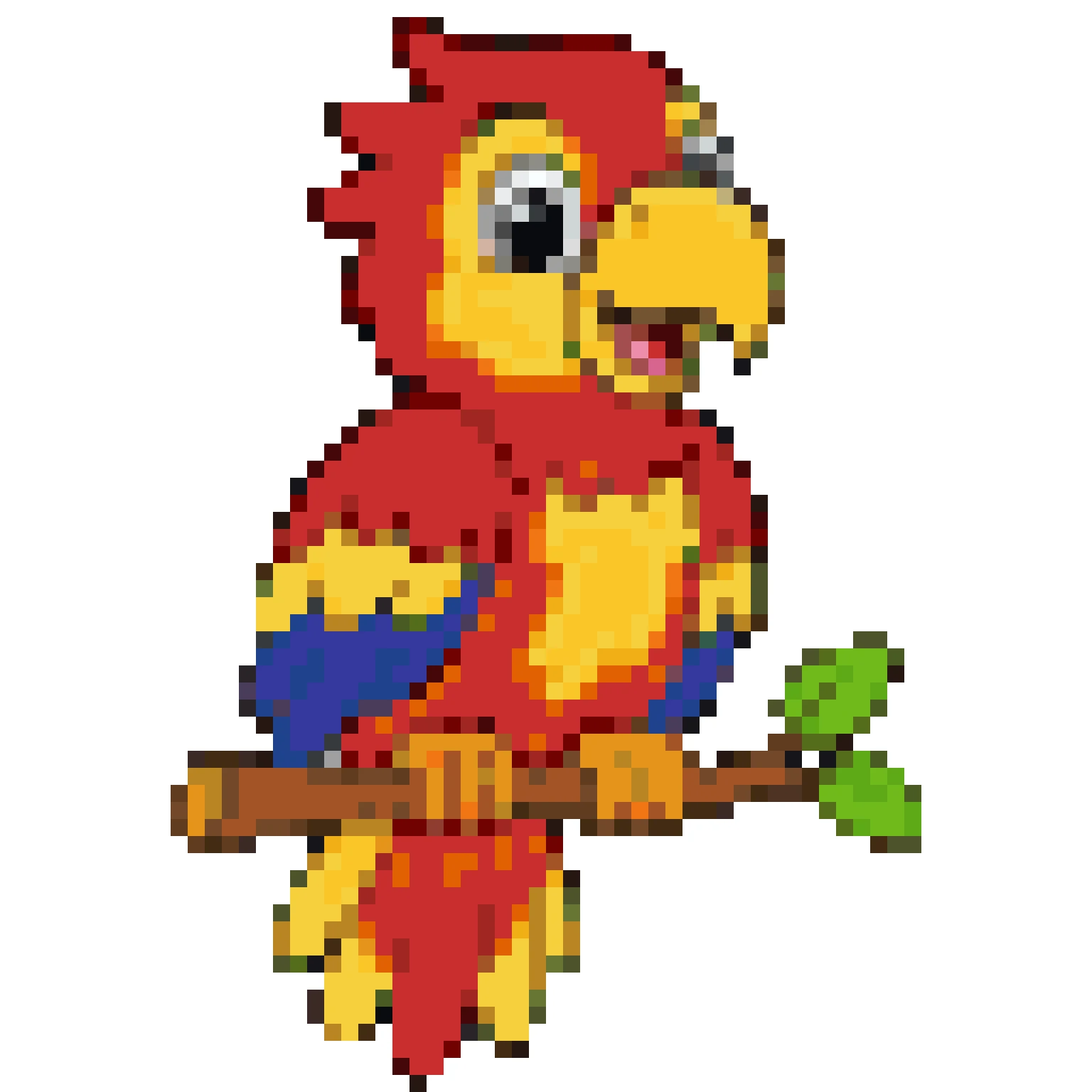
Real output: 64 blocks wide, all block groups, dithering off. The bright red comes from red mushroom blocks, a vivid red full block that does not power redstone the way a block of redstone would.
What does image to Minecraft blocks mean?
Your picture is made of millions of colours; Minecraft has a few dozen solid colours worth building with. Converting means shrinking the image to a grid of blocks and choosing, cell by cell, the block that looks closest. The tool uses a colour model based on how eyes perceive difference, so skin tones, skies and shadows land on sensible blocks.
Convert image to Minecraft blocks in seconds
Drop the photo and the block version appears immediately, then updates live when you change the size or the blocks allowed. There is no queue because the work happens on your device.
Picture to Minecraft blocks with your own palette
Concrete gives bright, flat colours; wool is softer; terracotta covers browns, pinks and muted tones; the natural group adds planks, stone, copper and more. Mixing groups gives the widest range.
Photos versus drawings
Drawings and cartoons with clear areas of colour convert cleanly at any size. Photos need more blocks to stay recognisable; around 96 blocks wide is where faces start to read well. For a map instead of a wall, use the Minecraft map art generator.
Why use our image to Minecraft blocks converter?
It turns a fun preview into something you can actually build, with no software to install. Everything from upload to download fits on one screen, so you can try several pictures in a few minutes and keep the one you like best.
An image to Minecraft block palette you can shop for
The material list names every block and how many stacks you need, sorted from most to least used, with a CSV export. It doubles as a checklist while you collect resources.
Image to Minecraft blocks schematic downloads
Save the layout as .litematic, .schem, .schematic, .nbt or Bedrock .mcstructure. Each format is explained on image to schematic.
An image to Minecraft blocks converter that stays private
Family photos and selfies never leave your browser. Close the tab and they are gone.
How to Use It in 3 Steps
Drop a photo
Any PNG, JPG, WebP or GIF up to 20 MB. Crop first if the subject is small in the frame, because empty sky or floor around a person uses blocks without adding anything to the picture.
Tune the result
Set the width, choose upright or flat, and switch block groups and dithering until the preview looks right.
Build or download
Copy the material list into your plans, or download a schematic and open it in Litematica. Prefer pixel-perfect sprites? The Minecraft pixel art maker has tips for that.
Making photos look good in blocks
Small edits to the picture before you upload change the result more than any setting.
Remove the background
Transparent pixels become empty space, so a cut-out subject gives a clean outline instead of a block rectangle. Most phone photo apps can remove a background in one tap.
Raise contrast and brightness
Block colours are less subtle than a screen. A slightly brighter, punchier photo keeps details that would otherwise merge into dark grey.
Light it the way the game does
Blocks look darker on their shaded sides and at night. Build bright art in a well-lit spot, or place it facing the sun so the colours match the preview.
Image to Minecraft Blocks FAQ
How do I convert an image into Minecraft blocks?
Upload the image here, choose a width and the block groups you want, and the tool picks the closest block for every part of the picture. Download the result as a schematic or follow the material list.
Is there a website that turns pictures into Minecraft blocks?
Yes, this one. It runs in your browser, is free and does not upload your picture.
Does it work for Bedrock?
Yes. Download a .mcstructure for a Bedrock structure block, or build by hand from the list; all palette blocks exist in both editions.
Does it work with Minecraft 1.21?
Yes. Block names match current Java versions, and schematics carry the game version so newer releases load them.
Can I turn an image into 3D Minecraft blocks?
This converter makes flat art. For a 3D statue of a character or animal, describe it to the AI builder, which sculpts statues in three dimensions.
Can I get block display commands instead?
No. The output is blocks you place, not display entities or commands. Schematics paste faster in creative anyway.
Is there a mod that does this in game?
Some mods and plugins render pictures in game, but you do not need one: build from the material list or paste the schematic with WorldEdit, which works on vanilla-compatible servers.
Can I use block textures instead of colours?
The matching uses each block’s average colour, which is what you see from a distance. Patterned blocks like bookshelves are skipped because their texture breaks up the picture.
Which blocks does it use?
Concrete, wool, terracotta and natural blocks such as planks, stone, copper and prismarine. Gravity blocks like sand and light sources are left out so the build stays put and looks even.
Why does my photo look blotchy?
Small faces and fine details need more blocks. Increase the width, crop closer to the subject, or turn dithering on to blend colours.
Is my image saved anywhere?
No. It stays in your browser and is never uploaded or stored.
Is it free?
Yes, the image to Minecraft blocks converter is free with no limits and no account.
Can I use a picture from my phone?
Yes. Open this page in your phone browser, tap Choose picture and pick a photo from your gallery or take a new one. Screenshots and saved images work too.
How many blocks does a photo need?
Width times height. A 64 by 48 picture is about 3,000 blocks, and doubling the width quadruples that. The material list shows the exact count before you download anything.
Can I keep the original colours exactly?
Only approximately: the game has a limited set of solid colours. Allowing all block groups and keeping dithering on gets closest; strongly saturated colours like neon pink map to the nearest available block.
What happens to the white background of my photo?
A white background becomes white concrete or wool like any other area. Remove it first, or use a PNG with transparency, so the background turns into empty space instead.
More free tools